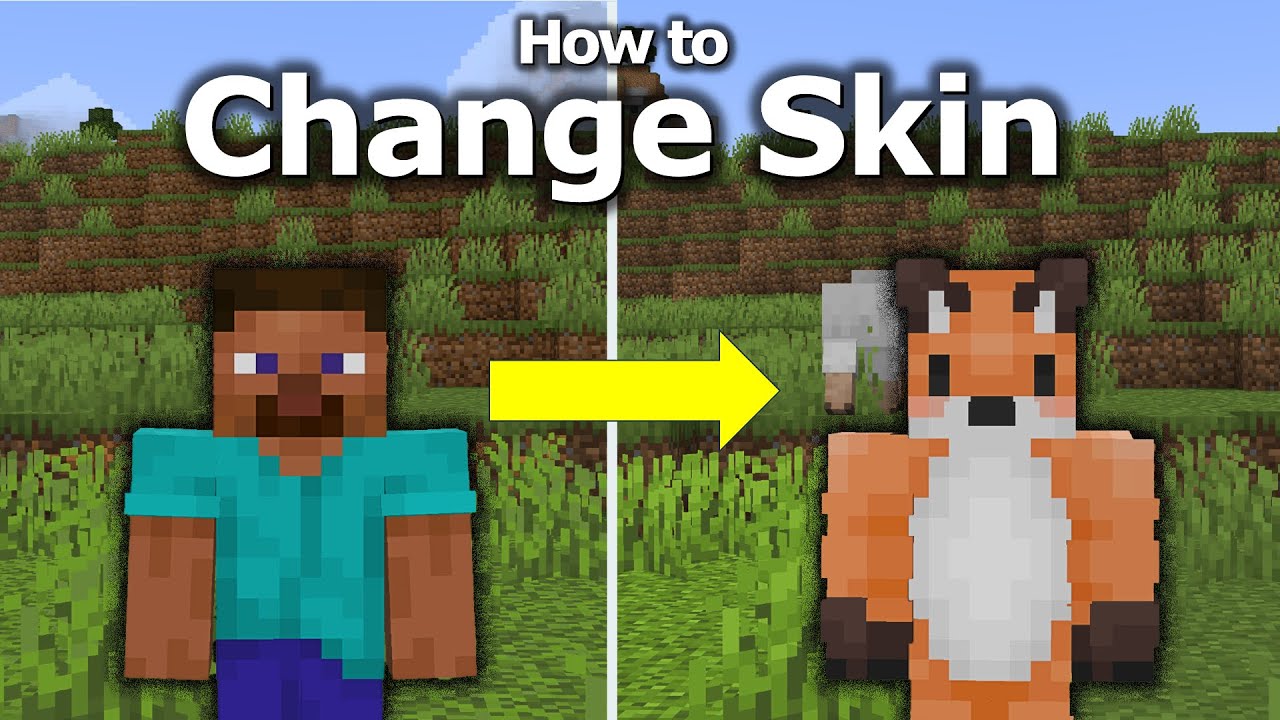
Ever wondered how to change minecraft skin without fuss and get your avatar looking fresh in no time? Whether you’re jumping into Minecraft Java Edition or Bedrock, this guide covers how you can revamp your Minecraft look in 2026 effortlessly. Custom skins aren’t just about aesthetics; they’re a statement, a way to stand out in pixelated crowds.
Let’s dive right in and make sure your Minecraft character matches your vibe.
- Minecraft skins are 64×64 pixel images.
- The popular editions are Java and Bedrock with slightly different skin upload processes.
- Changing skins is free and safe if done properly.
Understanding Minecraft Skins
Ask anyone who’s tried changing their Minecraft skin — it can be a headache if you don’t know the ropes. Minecraft skins are custom textures that wrap around your character model. The classic Steve and Alex models have different skin models now, making it crucial to pick the right format.
The Difference Between Minecraft Java and Bedrock Skins
- Java Edition: Uses .png files, supporting separate sleeves and layered clothing.
- Bedrock Edition: Offers more skin customization options and easier in-game skin switching.
Step-by-Step How to Change Minecraft Skin in Java Edition
- First, get your desired skin. You can find thousands of custom skins on sites like Team Visionary’s guide on Minecraft skins or create your own using editors.
- Next, go to the official Minecraft website and log into your account.
- Navigate to the profile section where skins are managed.
- Upload your new .png skin file. Make sure it fits the default 64×64 pixel size for Minecraft 1.8 and above.
- Save changes and launch Minecraft Java Edition to see your new look.
Changing Skins on Minecraft Bedrock Edition
Bedrock users have an even simpler path: just open the game, head to the dressing room, and select either a purchased skin or upload a custom one. But, beware, skins need to comply with Bedrock’s formatting to appear correctly.

Source: www.youtube.com
Creating or Finding Custom Skins
- Use trusted websites to download skins to avoid malware.
- Experiment with skin editors online if you want to personalize details.
- Double-check skin layers for odd glitches.
Common Mistakes to Avoid When Changing Minecraft Skins
- Uploading wrong file format or size.
- Forgetting to log into your correct Minecraft Account.
- Using skins from untrustworthy sources.
- Ignoring client updates that might affect skin compatibility.
How to Troubleshoot Skin Issues
Sometimes, your skin might not show correctly. Try these fixes:
- Restart the Minecraft launcher.
- Re-upload the skin ensuring it meets size specifications.
- Clear game cache and test again.
Additional Customization Tips
Apart from just swapping skins, you can use skin packs or create layered skins adding hats, accessories, and unique clothing textures. This breathes life into your Minecraft world and your role-playing experience.
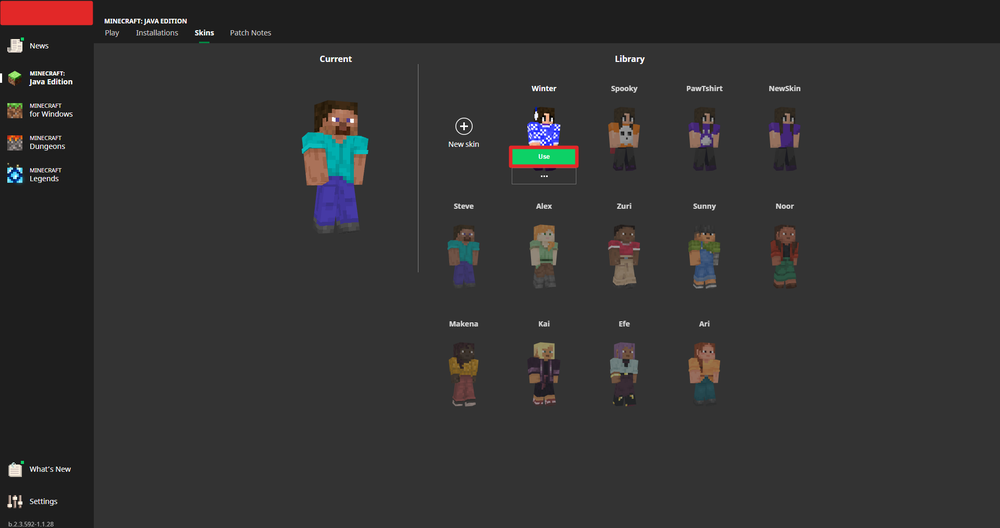
Using Skin Packs
Skin packs provide themed outfits – from knights to futuristic pilots. They often come bundled with animations and special effects. For details on skin packs JSON formatting, Microsoft’s official Minecraft documentation is a great resource: Skin Pack JSON Formatting and Localization Reference.
Why Change Your Minecraft Skin?
Changing your Minecraft skin is more than cosmetic flair. It’s about expressing who you are or the character you want to portray in multiplayer worlds. Being the ‘guy with an epic outfit’ on the server? Priceless.
Keeping Your Skins Safe and Your Account Secure
Use only trusted third-party sites or the official Minecraft channels for skins. Never share your account details. Hackers love to prey on players downloading suspicious skins.
The Role of Minecraft Java Edition Skins in 2026 Multi-Player Servers
Multiplayer servers emphasize uniqueness as more players join globally. Changing skins smartly can help with identification, faction representation, or just fun role play. Check out community forums for trending skins.
“I swapped my bland look for a fiery dragon skin. The reactions? Priceless. Recommended for any player wanting to stand out.” – Jake, Minecraft enthusiast
How to Change Minecraft Skin Using Mobile Devices
Mobile users can also switch skins right from the Minecraft PE dressing room or by uploading via the official website on a mobile browser, maintaining the same steps but adapted to touchscreen.
Legacy Skins vs. Modern Skins
- Legacy skins: Older 64×32 format, no sleeves or jacket layers.
- Modern skins: 64×64 supporting layered clothing and accessories.
Make sure to pick the right one when customizing your look.
Make Your Own Skins – Tools and Resources
Not finding the perfect match? Create your own! Websites with skin editors let you paint pixel by pixel. For a step-by-step guide, see this video tutorial on how to change your skin in Minecraft Java Edition.
Wrapping Up: Your New Look Awaits!
So, want to know how to change minecraft skin and actually enjoy the process without headaches? Follow this roadmap. It’s simple, powerful, and will have your friends asking for your skin source. This small change can massively boost your gameplay satisfaction. Try different designs and express your gamer personality. Just remember to always upload correctly, and voila – a fresh Minecraft avatar ready to roll!

Source: www.gamespot.com
Frequently Asked Questions
Can I change my Minecraft skin for free in 2026?
Absolutely! Minecraft allows you to upload custom skins for free through their official site or in-game wardrobe, no charges involved.
What format should my Minecraft skin file be?
The skin must be a .png file, typically 64×64 pixels for modern skins. Legacy skins use 64×32 pixels.
Will my custom skin show on Minecraft mobile and console versions?
Yes, when using Bedrock Edition on consoles or mobile, your uploaded skin will appear provided it matches the correct format.
Where can I find safe Minecraft skins to download?
Trusted community websites and the official Minecraft marketplace are your best bets. Avoid unofficial sources with poor reputations.
What if my skin doesn’t update after uploading?
Try restarting Minecraft, clearing local cache, or wait a few minutes. Sometimes updates take time to sync across servers.
Can I use animated skins in Minecraft?
Standard Minecraft does not support animated skins, but some modded clients offer this. Use with caution and server approval.
Do custom skins affect my gameplay performance?
No, skins only change appearance and have no impact on game performance or mechanics.
Keep exploring and enjoy your freshly styled Minecraft persona in 2026!

